
Black Screen in Hp Laptop: Quick Fixes to Restore Your Display
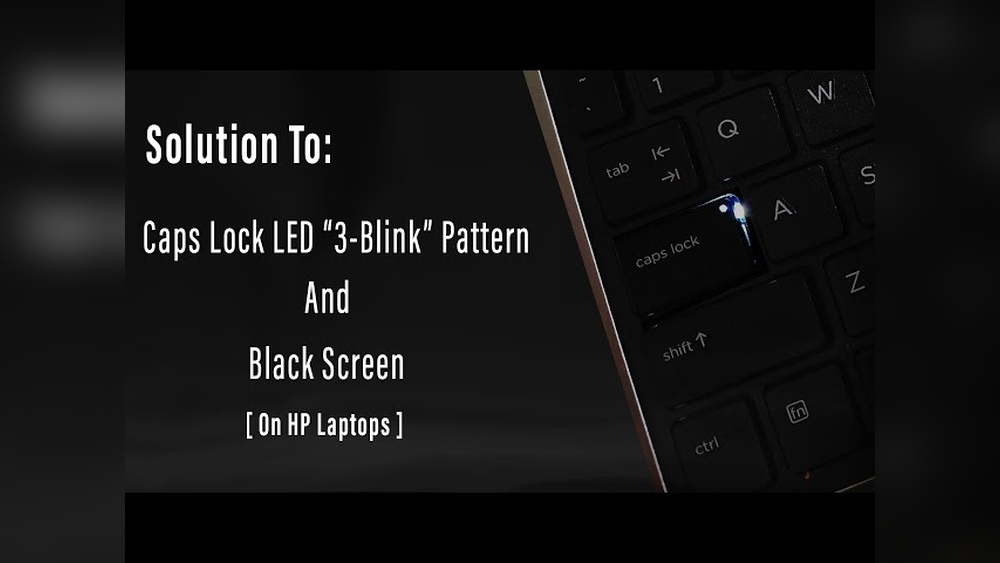
Have you ever turned on your HP laptop, only to be met with a black screen? It’s frustrating, confusing, and can make you feel stuck.
You might wonder if your laptop is broken or if your important files are lost forever. But don’t worry—you’re not alone, and there are simple steps you can take to fix this problem. You’ll discover easy solutions to get your HP laptop screen working again.
Keep reading, because your laptop’s bright, clear display is closer than you think.
Common Causes Of Black Screen
Black screen issues on an HP laptop can be frustrating. They stop you from using your device properly. Understanding the common causes helps fix the problem faster. Many factors may lead to a black screen. Some relate to hardware, others to software or settings. Identifying the cause narrows down the solution.
Hardware Issues
Hardware problems often cause black screens. Faulty components like the graphics card or motherboard can stop the display. Loose or damaged cables inside the laptop may also cause the screen to go black. Sometimes, the battery or power supply issues prevent the laptop from turning on properly. Checking hardware connections and parts is important.
Software Glitches
Software errors can make the screen black. Corrupted system files or drivers may cause display failure. Updates that did not install correctly also lead to black screens. Malware or viruses can disrupt the system and affect the display. Restarting the laptop or booting in safe mode can help identify software problems.
Display Settings Problems
Incorrect display settings cause black screen issues. The screen might be set to an external monitor only. Brightness settings at the lowest level make the screen appear black. Display resolution set too high for the screen can cause problems. Adjusting these settings often restores the screen to normal.

Credit: www.youtube.com
Black Screen in Hp Laptop: Basic Troubleshooting Steps
Facing a black screen on your HP laptop can be frustrating. Basic troubleshooting helps identify simple issues quickly. Follow these easy steps to check your laptop’s condition before seeking expert help.
Restart Your Laptop
Turn off your laptop completely. Wait for 10 seconds. Press the power button to start it again. Restarting can clear temporary problems causing the black screen.
Check Power Supply
Ensure your laptop is plugged in correctly. Check if the power adapter and cable work well. A weak or broken power supply can cause the screen to go black.
Adjust Brightness
Press the brightness keys on your keyboard. Sometimes, the screen looks black due to low brightness. Increasing brightness may bring back your display.
Advanced Fixes For Black Screen
Advanced fixes target deeper issues causing a black screen on HP laptops. These steps require some technical skills but can solve problems that basic tricks cannot. Follow each method carefully to avoid further issues.
Start with graphics drivers, then try safe mode, and finally reset BIOS settings.
Update Or Reinstall Graphics Drivers
Graphics drivers control your laptop’s display. Outdated or corrupted drivers may cause the black screen. To fix this, update the drivers from the Device Manager or HP’s official website. If updating does not help, uninstall the driver and reinstall it fresh. This process can restore the display’s normal function.
Boot In Safe Mode
Safe Mode starts Windows with only essential programs. It helps check if other software causes the black screen. To enter Safe Mode, restart the laptop and press F8 or use recovery options. Once in Safe Mode, uninstall recent apps or drivers that might cause problems. Restart normally to see if the screen works now.
Reset Bios Settings
BIOS controls basic hardware settings. Incorrect BIOS settings can cause display issues. Resetting BIOS to default may fix the black screen. To do this, restart the laptop and press F10 or the key shown on the screen to enter BIOS. Find the option to load default settings, save changes, and exit. This resets hardware settings safely.

Credit: www.youtube.com
Black Screen in Hp Laptop: When To Seek Professional Help
Knowing when to seek professional help for a black screen on your HP laptop is important. Some problems need expert skills and tools. Trying to fix these yourself might cause more damage. Recognize the signs that show it’s time to get help.
Hardware Replacement Needs
Some black screen issues come from broken hardware. A damaged screen, faulty graphics card, or bad motherboard can cause the problem. Professionals can test and replace these parts safely. They have the right tools to open and repair your laptop.
Black Screen in Hp Laptop: Persistent Software Issues
Sometimes, software problems cause the black screen. Corrupt drivers or system files may stop the laptop from showing the display. Experts can use advanced tools to diagnose and fix these issues. They can reinstall or update software without harming your data.
Data Recovery Options
Your files matter. If your laptop won’t start, professionals can help recover important data. They use special methods to save files from damaged drives. This service protects your photos, documents, and other valuable information.

Credit: www.reddit.com
Frequently Asked Questions
Why Does My Hp Laptop Screen Go Black Suddenly?
A black screen can happen due to software errors, hardware issues, or power problems in your HP laptop.
How Can I Fix A Black Screen On My Hp Laptop?
Try restarting, checking power, updating drivers, or resetting display settings to fix the black screen.
Is A Black Screen On Hp Laptop A Hardware Problem?
Sometimes yes, it may involve the display, graphics card, or motherboard hardware failures.
Can A Black Screen Be Caused By Battery Issues?
Yes, a faulty or dead battery can cause the screen to go black on HP laptops.
Should I Contact Hp Support For A Black Screen Problem?
Contact HP support if basic fixes don’t work or if hardware repair is needed.
Conclusion
A black screen on your HP laptop can feel frustrating. Simple steps often fix the issue quickly. Check the power and connections first. Restart the laptop to refresh its system. If problems continue, hardware may need attention. Stay calm and follow clear instructions.
Troubleshooting helps avoid unnecessary repair costs. Your laptop can work well again soon. Keep these tips handy for future reference. Small fixes save time and stress. Don’t give up; solutions are within reach.


