
Connecting Logitech Keyboard: Easy Steps for Instant Setup

Connecting Logitech Keyboard- Are you struggling to connect your Logitech keyboard to your device? You’re not alone.
Whether it’s for work, gaming, or just everyday typing, having your keyboard ready and working smoothly can save you time and frustration. In this guide, you’ll discover simple, step-by-step tips to get your Logitech keyboard connected quickly and easily. By the end, you’ll be typing away without a hitch.
Ready to make your setup hassle-free? Let’s dive in.
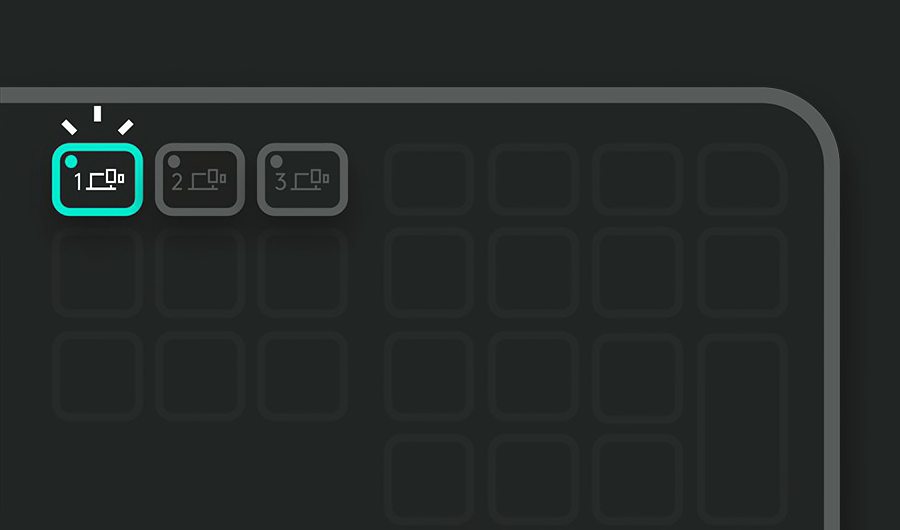
Credit: www.logitech.com
Preparing Your Logitech Keyboard
Getting your Logitech keyboard ready for use is the first step to a smooth typing experience. Before you connect it to your device, there are a couple of simple checks to make. These checks save you from frustration and ensure your keyboard performs well right from the start.
Checking Battery And Power
Start by making sure your keyboard has enough power. If it uses batteries, check if they are fresh or fully charged. Weak batteries can cause lag or connection drops, which can be really annoying during work or play.
If your keyboard has a built-in rechargeable battery, plug it in for a while before connecting. This avoids interruptions and lets you focus on what matters. Have you ever been halfway through a task only to lose connection because of low power?
Connecting Logitech Keyboard: Identifying Connection Type
Next, figure out how your Logitech keyboard connects to your device. It might use Bluetooth, a USB receiver (often called a Unifying Receiver), or a wired connection. Knowing this helps you prepare the right setup and avoid wasting time.
For Bluetooth keyboards, ensure your device supports Bluetooth and that it’s turned on. If you have a USB receiver, check if it’s plugged into your computer’s USB port and that the keyboard is compatible with it. This step is crucial because trying to connect the wrong way can be confusing and frustrating.
Connecting Via Bluetooth
Connecting your Logitech keyboard via Bluetooth offers a wireless and flexible way to type. This method frees you from cables and allows easy switching between devices. The process is simple and fast. Follow these steps to pair your keyboard with your device.
Activating Pairing Mode
Turn on your Logitech keyboard. Look for the Bluetooth button. Press and hold it until the light blinks. The blinking light means the keyboard is in pairing mode. This step makes the keyboard visible to your device.
Pairing With Your Device
Open the Bluetooth settings on your device. Search for new devices. Find your Logitech keyboard in the list. Select it to connect. Wait for the confirmation message. Your keyboard is now ready to use wirelessly.
Using Logitech Unifying Receiver
The Logitech Unifying Receiver is a small USB device. It connects multiple Logitech devices to your computer. This receiver lets you use your keyboard without wires. It works on a simple and reliable wireless connection. Setting it up is easy and fast. Follow these steps to connect your Logitech keyboard using this receiver.
Plugging In The Receiver
Find a free USB port on your computer. Insert the Logitech Unifying Receiver into the port. The receiver is small, so it fits easily. The computer will detect the receiver automatically. Wait a few seconds for it to be ready. No extra drivers usually needed on modern systems.
Syncing The Keyboard
Turn on your Logitech keyboard. Press the connect button on the receiver or keyboard. This button may be under the battery cover. The keyboard and receiver will start syncing. Lights may blink to show connection progress. After syncing, test the keyboard by typing. Your keyboard is now ready to use wirelessly.

Credit: www.youtube.com

Credit: www.youtube.com
Frequently Asked Questions
How Do I Connect A Logitech Keyboard To My Pc?
Turn on the keyboard, press the connect button, and pair it via Bluetooth or USB receiver.
What To Do If Logitech Keyboard Is Not Connecting?
Check battery, restart device, and ensure Bluetooth or USB receiver is working properly.
Can I Use Logitech Keyboard With Multiple Devices?
Yes, many Logitech keyboards support easy switching between several devices via Bluetooth or receiver.
Conclusion
Connecting your Logitech keyboard is simple and quick. Follow the steps carefully to avoid any issues. Check your device settings if the keyboard does not work right away. Keep the keyboard charged or replace batteries as needed. Enjoy smooth typing and better control on your computer.
Stay patient and try again if problems appear. A well-connected keyboard improves your work and play experience.


