Logitech Keyboard Connect: Ultimate Guide to Easy Setup & Use
Are you tired of struggling with your keyboard connection every time you want to type? Imagine a hassle-free way to connect your Logitech keyboard instantly, so you can focus on what matters—your work, games, or creativity.
You’ll discover simple steps and expert tips to get your Logitech Keyboard Connect up and running smoothly. Keep reading to unlock the secret to a seamless typing experience that will save you time and frustration.

Credit: www.logitech.com
Choosing The Right Logitech Keyboard
Choosing the right Logitech keyboard can improve your typing experience. Different models suit different needs. Some are compact for travel, while others offer extra features for comfort. Understanding what each keyboard offers helps find the best fit for your tasks.
Popular Models And Features
Logitech offers many keyboard models. The K380 is small and lightweight. It connects to multiple devices easily. The MX Keys model has backlit keys. It is designed for long typing sessions. The K120 is simple and affordable. It suits basic typing needs. Features vary by model but focus on comfort, connectivity, and durability.
Compatibility With Devices
Logitech keyboards work with various devices. Most support Windows, macOS, Android, and iOS. Some use Bluetooth to connect wirelessly. Others need a USB receiver. Check your device’s connection options before choosing. Compatibility ensures smooth typing without extra setup. Always verify if the keyboard matches your device’s system.
Step-by-step Setup Process
Setting up your Logitech Keyboard Connect is simple and fast. Follow these clear steps to start typing quickly. Each part of the process helps you connect and customize your keyboard. This guide shows you how to unbox, pair, and use the app for the best experience.
Unboxing And Preparing
Open the box carefully and take out the keyboard. Check for any protective films or covers on the keys. Remove all packaging to avoid any damage. Place the keyboard on a flat surface. Look for the power switch and turn it on.
Connecting Via Bluetooth
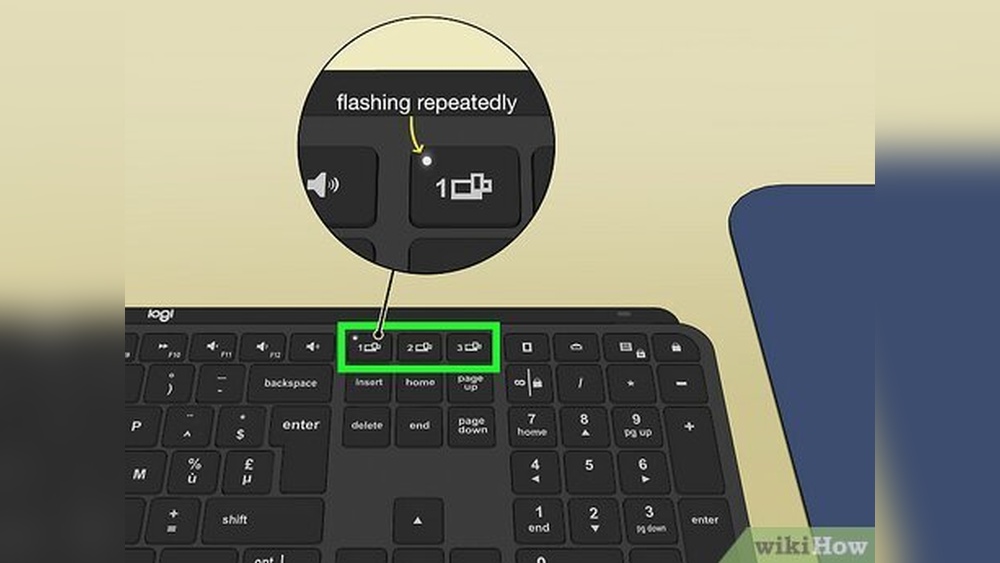
Turn on Bluetooth on your device. Press and hold the Bluetooth button on the keyboard. Wait for the keyboard to appear in your device’s Bluetooth list. Tap the keyboard name to connect. Enter the code shown on the screen, if asked. Your keyboard is now ready to use.
Using The Logitech Connect App
Download the Logitech Connect app from your device’s app store. Open the app and follow the on-screen instructions. The app helps update the keyboard’s firmware. Customize key functions and check battery status. Use the app to optimize your typing experience.
Tips For Optimal Use And Maintenance
Proper use and care of your Logitech Keyboard Connect improve its performance and lifespan. Small steps can make a big difference. Follow these tips to keep your keyboard working smoothly every day.
Customizing Keyboard Settings
Adjust your keyboard settings to fit your needs. Use Logitech software to change key functions and shortcuts. Customize backlight brightness for better visibility. Set up language and region preferences easily. Personalization makes typing faster and more comfortable.
Battery Care And Replacement
Check battery levels regularly to avoid surprises. Replace batteries with the recommended type for best results. Remove batteries if you won’t use the keyboard for a long time. Store the keyboard in a cool, dry place to save battery life. Proper battery care keeps your keyboard ready to use.
Troubleshooting Common Issues
Clean the keyboard to fix stuck or unresponsive keys. Restart Bluetooth if the keyboard disconnects. Check for software updates to improve performance. Reset the keyboard if it does not connect properly. Simple fixes often solve common problems quickly.

Credit: www.youtube.com

Credit: www.youtube.com
Frequently Asked Questions
How Do I Connect A Logitech Keyboard To My Computer?
Turn on the keyboard, enable Bluetooth, and select it in your computer’s Bluetooth settings.
Can Logitech Keyboard Connect Work With Multiple Devices?
Yes, many Logitech keyboards support easy switching between several devices via Bluetooth.
What Should I Do If Logitech Keyboard Connect Is Not Working?
Restart the keyboard and device, check Bluetooth settings, and replace batteries if needed.
Conclusion
The Logitech Keyboard Connect offers easy setup and reliable performance. It fits well with many devices, making typing smooth and comfortable. Users enjoy its simple design and strong connection. This keyboard helps improve productivity without any hassle. Choosing it means less worry about compatibility or battery life.
A solid choice for everyday use and work tasks. Simple, effective, and built to last.